Snippet CRUD
CRUD: creating, reading, updating, and deleting snippets and snippet files.
Creating Snippets
Optionally highlight code to use it as a starting point, then do any of the following:
Create Global Language Snippet
- Right click and choose
create language specific snippet - Click the in the title of the Snippets sidebar view
- Enter
snippetstudio.snippet.addGlobalin the command prompt
Create Snippet in file of choice
- Hover over a snippet file in either the Snippets or Locations Manager sidebar view and click the
We already covered Creating Snippet Files in Global vs Local Snippets
Reading Snippets
The Snippets tree-view gives a list of snippets of the active language. The Locations Manager tree-view shows all local and global snippet files.
Double click a snippet file to open it. Or right click and choose Open Snippet File
Double click any snippet for a popup of snippet details. Vote whether you want to see this behavior upgraded to a read-only editor tab.
Updating Snippets
Click the icon to edit any snippet listed in the snippets sidebar view. Then click save when your done editing.
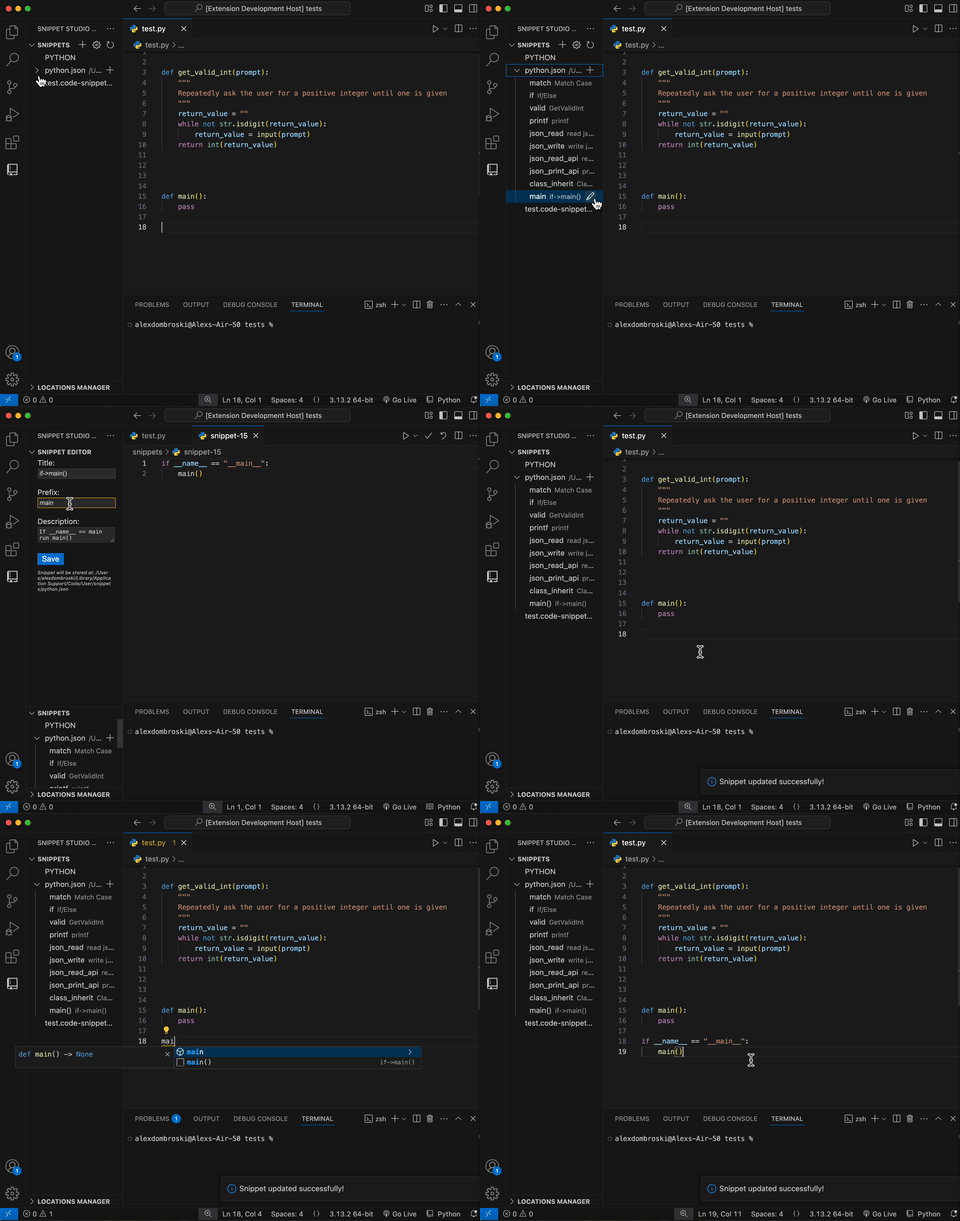
Deleting Snippets & Files
Click the icon to delete a snippet or snippet file. The options are also available in the right click context menu.
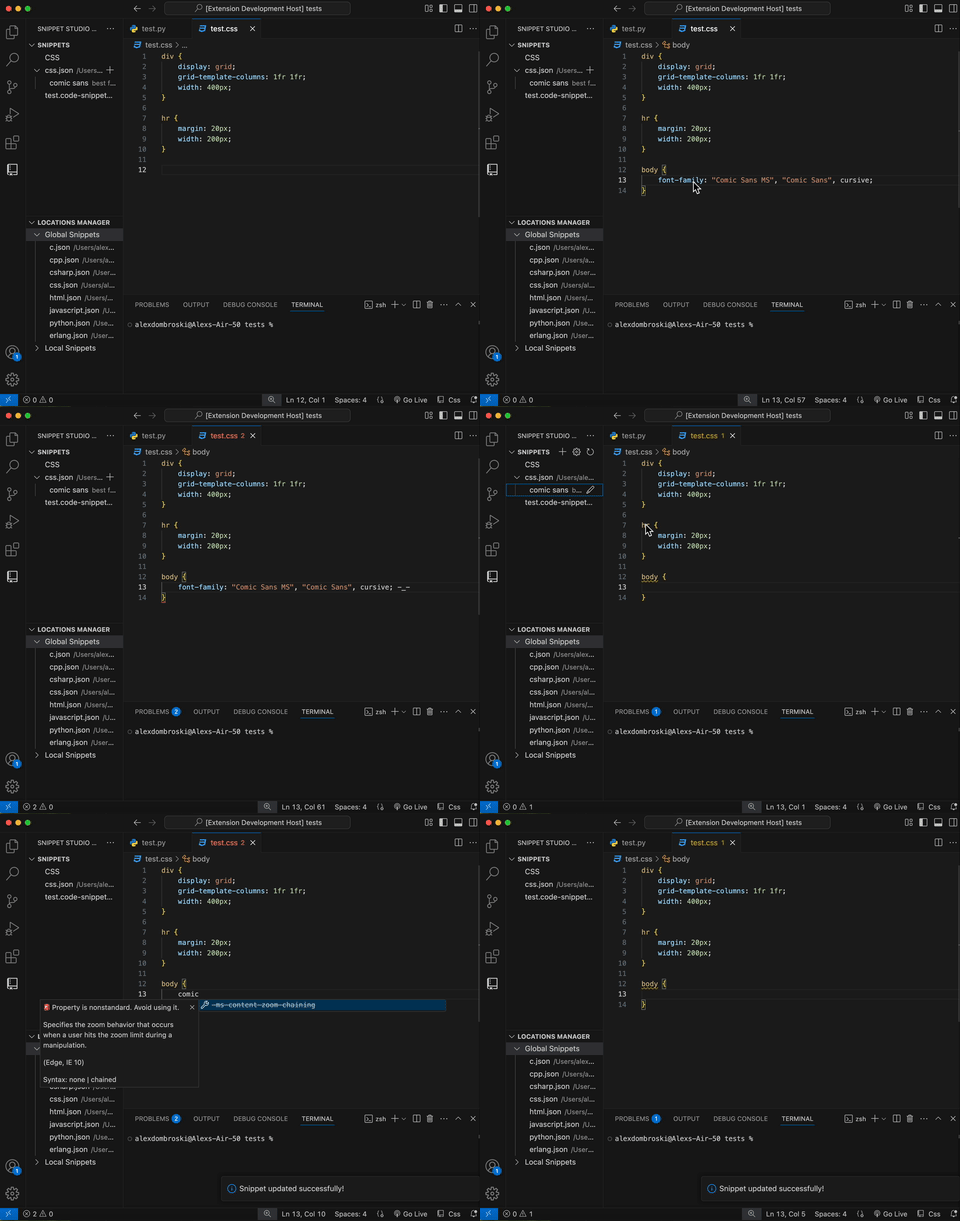
Comic Sans is NOT allowed!
Refreshing Views
After C.R.U.D-ing a snippet or snippet file, the extension sidebar tree-views should auto refresh. If not, click the icon in the title menu of either view.
Or you can be cool and type these commands in the command prompt.
snippetstudio.refresh